CapCut
1 houre ago
250MB
2.12.1
Andriod 5.0 above
75M+
Description
CapCut is a mobile video editing app designed for users who want to turn everyday clips, photos, and recordings into polished videos. Its editing workspace brings trimming, transitions, text, audio, captions, effects, and export controls together, making it suitable for both quick social posts and more detailed projects.

Whether you are creating a short video for TikTok, Instagram Reels, YouTube Shorts, WhatsApp, Facebook, or a personal vlog, apk provides a flexible set of tools for editing directly from an Android device.The app is easy to use vedio editing and use to add music in editing vedios.Further mor Download apk and visit our official website.
What Is CapCut?
The app is a mobile video editor that allows users to edit videos without relying on a desktop computer. You can import clips and photos from your Android device, arrange them on a timeline, make adjustments, add creative elements, and export the finished project.
The app is particularly useful for short-form content because its editing tools are organized around common social-media workflows. At the same time, its multi-track timeline and advanced controls give users more flexibility when working on longer or more layered projects.
For beginners, the interface provides straightforward editing controls. More experienced creators can use features such as keyframes, speed curves, stabilization, captions, and background tools to refine their videos.
Key Features of APK
Vadio editor includes a broad collection of editing tools in a single workspace. The exact tools available may depend on your version, device, account, and region.
Multi-Track Timeline Editing
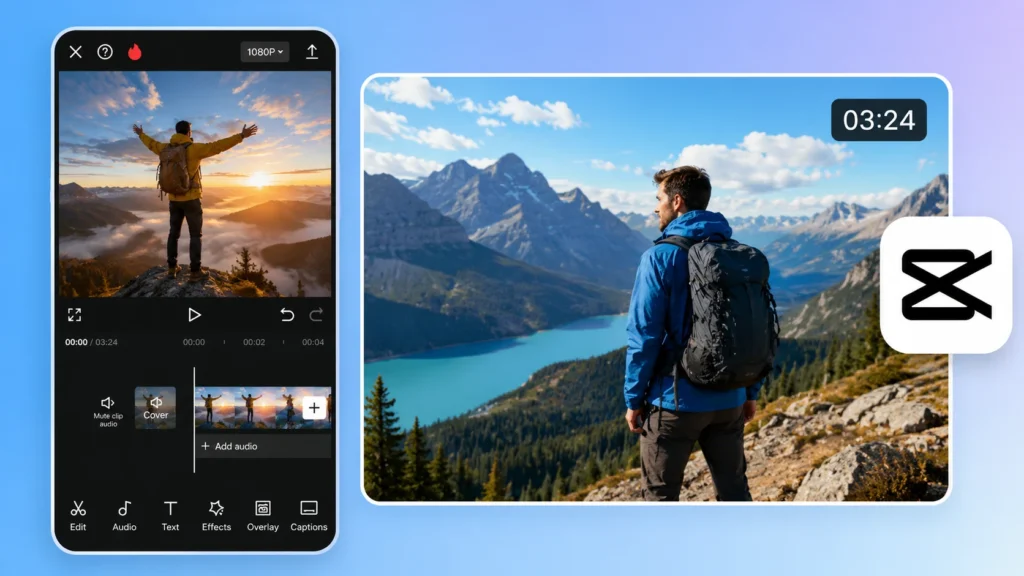
The timeline is the main workspace for building a video. You can trim clips, split scenes, combine footage, change the order of media, and preview the project while editing.
Multiple elements can be positioned at different points in the project, including:
- Video clips
- Photos
- Text
- Music
- Voice recordings
- Effects
- Transitions
- Stickers
This makes it easier to create videos with several visual and audio layers without constantly switching between different applications.
Speed Control and Speed Curves
Apk provides detailed speed controls for clips. Depending on the editing requirement, you can slow down footage, speed it up, or create changing speed effects.
Speed curves offer additional control over how quickly a clip changes from one speed to another. Optical-flow-based slow motion can also be used where supported.
These tools are useful for action clips, transitions, travel videos, tutorials, and creative short-form content.
Keyframes and Stabilization
Keyframes allow you to animate certain properties within a video. They can be useful when you want text, images, or other elements to move at specific points in a scene.
The stabilization feature is designed to reduce unwanted camera movement in footage recorded while walking, moving, or filming without a tripod.
Together, these controls give creators more flexibility when refining footage captured on a phone.
Captions and Background Tools
Adding readable captions can make videos easier to follow, particularly when viewers watch without sound. The app can generate captions from spoken audio, after which you can review and edit the generated text.
The app also provides text-to-speech functionality for supported languages and projects.
Other tools include movement tracking and background removal. These can help when you want text or another visual element to follow a subject or when you need to separate a person or object from its original background.
Because automated tools can occasionally make mistakes, reviewing generated captions and background results before exporting is recommended.
Text, Effects, Filters, and Stickers
Vedio editor gives creators several ways to change the visual appearance of a project.
You can add:
- Custom text
- Subtitles
- Imported fonts
- Stickers
- Templates
- Filters
- Transitions
- Visual effects
Effects include styles such as Glitch, Blur, and 3D, although the available selection can change over time.
For example, text can be used to explain a tutorial, introduce a speaker, highlight an important moment, or add context to a short video. Filters and effects can then be used selectively to give the finished project a consistent visual style.
Audio Editing in CapCut
Good video editing is not only about visuals. Apk also provides tools for working with audio.
Depending on the available features, you can add music, sound effects, extracted audio, or your own voice recording. Voice enhancement and noise-reduction tools can also help improve spoken audio.
A simple workflow is to first arrange the video, then add background music and finally adjust the volume of individual elements so that speech remains clear.
Apk Export Options
After editing is complete, Apk provides export controls that allow you to prepare the final video for your intended platform.
Supported export options can include different resolutions, formats, frame rates, and other settings. The supplied information indicates support for exports up to 4K at 60 fps, with Smart HDR available on supported devices.
Higher-quality exports can require more storage space and processing power. If your goal is to upload a video to a social platform, choosing an appropriate resolution rather than automatically selecting the highest setting can help balance quality, file size, and export time.
CapCut Free vs CapCut Pro
Apk editing functionality for users who want to create and export videos. However, not every asset or advanced feature is necessarily included with the free experience.
Some templates, effects, AI-powered tools, and other premium assets may be part of App Pro.
Premium items are generally identified within the app, allowing users to check whether a particular tool or asset requires a paid plan before using it.
The availability of individual features can also change based on location. If a specific template or editing tool is important to your workflow, check what is currently available in your version of the app.
How to Use App on Android?
Getting started with app is relatively straightforward. The basic editing process can be completed in a few steps.
1. Create a New Project
Open app and select the option to create a new project. Choose the videos or photos you want to include from your Android device.
2. Arrange Your Clips
Place your selected media on the timeline. Trim unwanted sections, split clips where necessary, and rearrange scenes until the basic sequence feels right.
3. Add Creative Elements
Add captions, text, music, transitions, stickers, filters, or effects according to the style of your video. Avoid adding too many effects if they make the main content difficult to understand.
4. Review the Project
Watch the complete video before exporting. Check the timing of cuts, subtitle accuracy, audio levels, transitions, and visual effects.
5. Export the Video
Choose the appropriate resolution and other available export settings. Save the completed video to your device and share it through your preferred social platform.
Tips for Creating Better Videos With CapCut
A large number of editing tools does not automatically produce a better video. A few simple practices can make the final result more professional.
Keep the opening interesting: The first few seconds are important for short-form content. Start with the most useful, entertaining, or relevant part of your video.
Keep captions readable: Use clear text and make sure captions remain on screen long enough to be understood.
Use transitions carefully: Transitions should help connect scenes rather than distract from them.
Balance your audio: Background music should not overpower dialogue or narration.
Choose the right export quality: Higher resolution is useful when the original footage supports it, but unnecessary settings can create larger files.
Preview before publishing: Always watch the exported video or a complete preview to catch spelling, timing, cropping, and audio mistakes.
Things you Know Before Using Apk
Before installing or updating app, there are a few practical points worth considering.
First, available features can differ by region, device, account, and app version. A tool shown in an online tutorial may not necessarily appear in every installation.
Second, some advanced features and creative assets may require CapCut Pro. If you are looking for a specific effect or AI tool, check its availability before building your entire project around it.
Third, video editing can use considerable storage and processing resources, particularly when working with high-resolution footage. Keeping sufficient free storage and closing unnecessary background apps can make editing more comfortable on supported devices.
Finally, use media that you own or have permission to edit and publish, especially when preparing videos for public platforms.
Who Is CapCut Best For?
Vedio editor can be useful for a wide range of Android users.
Beginners can use basic trimming, text, music, and transition tools without needing extensive editing experience.
Social-media creators can use captions, effects, templates, speed controls, and export options when preparing short-form videos.
Vloggers can combine multiple clips, add narration, adjust audio, and organize longer sequences from a phone.
Advanced mobile editors can take advantage of keyframes, multi-track editing, stabilization, speed curves, and other controls when they need more precision.
FAQs
The app offers core video-editing tools, while some advanced features, templates, effects, and AI tools may require a CapCut Pro plan.
The supplied information indicates that app supports exports up to 4K at 60 fps on supported devices. Actual options can depend on the device, source media, and current app version.
Yes. App provides caption tools, including automatic caption generation from spoken audio, with options to edit the generated text.
App provides background-removal tools for supported projects. Results can vary depending on the subject, footage quality, and current version of the app.
Apk supports adding audio to projects, including imported or recorded audio where supported. You should make sure you have the necessary rights to use music in published videos.
Final Thoughts
The Apk brings a wide range of video-editing tools into one Android workspace. From basic trimming and transitions to captions, speed controls, keyframes, stabilization, audio editing, effects, and high-resolution exports, the app can handle many common mobile editing tasks.
Its biggest advantage is flexibility. A beginner can start with simple cuts and text, while a more experienced creator can gradually explore advanced editing features as their projects become more complex.
Before downloading or updating the APK, check the current requirements and available features for your device and region. Some tools and assets may be limited to CapCut Pro, while export capabilities can depend on your phone and source footage.